 Textend
Why do pictures go missing when you move a Markdown draft?
Add pictures directly in Textend, then learn how to keep them with your draft when moving files, sharing a project, or cleaning up attachments. Includes a downloadable practice folder.
Seeing a picture does not put it inside the text file
You finish an illustrated article in Textend and send the .md file to a colleague. The headings and paragraphs arrive, but the picture does not. Or you move the draft from the desktop to a project folder and a picture that worked a moment ago stops loading. You can usually investigate without rewriting the article.
An ordinary Markdown image reference records where to find a picture; the picture itself is another file or lives at a web address. The editor follows that reference to display it in the draft. Moving the text can leave the reference unchanged while its target is no longer where the editor expects it.
Textend lets you work with the picture in an editable view without typing image syntax. Understanding the relationship helps when you move, share, or troubleshoot the files.
Insert a picture in Textend and know where it goes
Place the cursor where the picture belongs and choose a local file through the image control. You can also paste or drop a picture. Textend saves it and writes the reference so you can keep working with the article rather than constructing a path in source mode.
For a Markdown file opened outside the document library, newly inserted local pictures go into an assets folder beside the document. Treat that folder as part of the project. Existing drafts may use a different folder, such as images; follow their existing references when investigating an older file.
Library attachments are managed together and may be shared by several documents; Textend handles references when moving drafts within the library. Avoid moving an attachment folder independently or assuming library paths follow the external-file convention. Identify which kind of document you are working with before reorganizing or sharing it.
Open the sample as a small project
Download the practice archive below, extract it completely, then open draft.md in Textend. Do not pull out only the .md file from the archive. You will see a heading, a short explanation, and a picture in the writing view.
The folder contains a draft, a picture, and instructions. The assets folder sits beside draft.md, with the picture inside it. Rename or move the outer folder while keeping that arrangement, and the relative reference can still find the same file.
In versions that require additional file access permission, Textend may ask you to allow access to the document’s folder to display local pictures. Follow the prompt for that folder. An existing file without access permission is a different problem from a file that has been moved away.
image-paths/
├── draft.md
├── assets/
│   └── paper-study.webp
└── README.txtCompare moving the folder with copying only the text
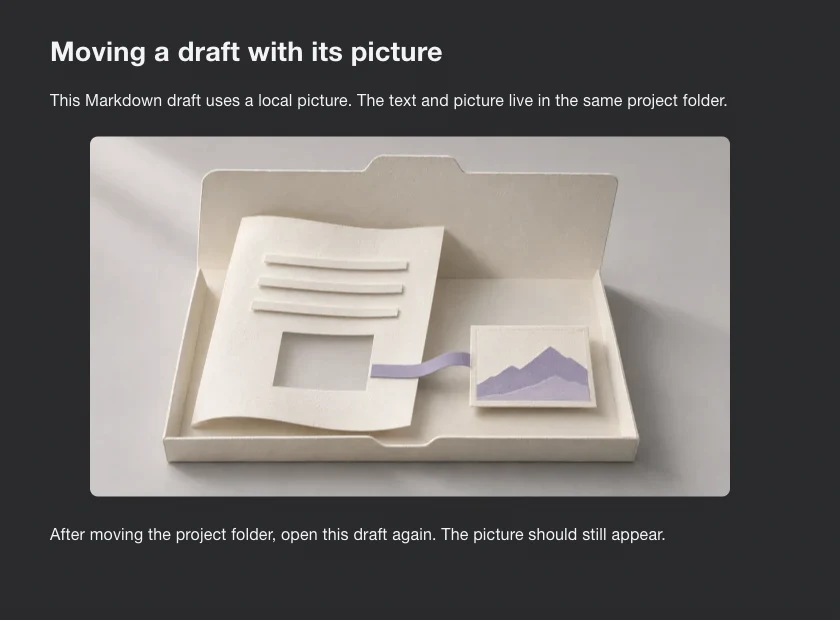
Copy the whole image-paths folder to a new location and open draft.md inside the copy. The real Textend screenshot below comes from that operation: the draft opens from its new location and the picture still appears. The relationship between the files has traveled with them.
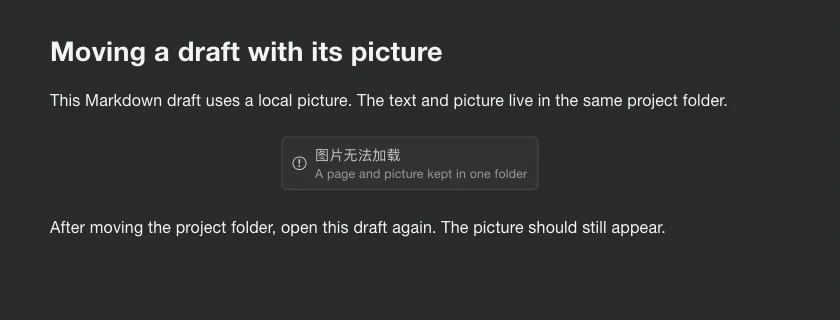
Now create an empty folder, copy only draft.md into it, and open that copy. The text has not changed, but the picture cannot load. The original picture still exists in the old folder; assets/paper-study.webp is simply missing beside the new copy. This exercise deletes neither the original draft nor its picture.
Copy assets beside that draft as well, then reopen the copy to check that the picture is back. Use the same check on a copy before changing computers, syncing a folder, or sending an archive.
Look at the reference when you need to troubleshoot
Read a relative path as directions starting from the document’s folder. In this example, assets/paper-study.webp means enter the adjacent assets folder and find paper-study.webp. It does not point to one particular computer’s desktop.
The sample’s image reference is folded away below for readers who want to inspect it. Learning the syntax is optional. You can also inspect a picture’s source, reveal its location through the image menu, or choose the correct file again through the image control.
Start with the file, permissions, and name using the table below. Reopen the actual copy after fixing it; a picture working in the original does not prove the copy you plan to send is complete.
Optional: inspect the image reference
| What you see | What to check first |
|---|---|
| The picture folder is missing in the new location | Copy the picture folder too, keeping the same relative position |
| The file exists but access is requested | Allow access to the document folder when prompted |
| The picture or folder was renamed | Check the exact name, extension, and letter case; choose the picture again if needed |
| A picture at a web address does not load | Check the connection and whether the recipient can access that address |
Check that recipients can open online pictures
Local pictures depend on files traveling with the draft. Online pictures depend on an accessible address. A web URL may remove the need to send a local image folder, but the recipient must be able to reach it. An expired link, changed permissions, or an unavailable connection can still leave the picture missing.
Image uploading in Textend is configured separately from ordinary insertion. Configure an uploader in Settings → Editor → Image upload when you need one. Seeing a picture in the editor does not mean it has automatically been uploaded; the destination and access conditions depend on your setup.
After uploading, check the link in a way that reflects the recipient’s access before sharing it. Keeping the local original also gives you material to replace a broken link later. Check upload success and backup completeness separately.
Check references before cleaning up attachments
Removing a picture from a paragraph usually removes that reference, not necessarily the image file on disk. A library attachment may still be referenced by another draft, a version, or content in the trash. Not seeing it in one article is not enough to decide it can be removed.
Use Settings → Storage & Diagnostics → Attachment storage to inspect library usage. Check references, review unused attachments, and move the files you choose to the trash. Textend checks references again before removal; emptying the trash reclaims the space.
An unused file may be material you intend to reuse or a local backup kept after uploading. This screen manages library attachments, not every external project’s assets folder. Back up external drafts with their pictures and keep a complete copy before cleaning them up.
Open the copy you are about to send
If the recipient will keep editing, archive the external .md file with the picture folders it references and ask them to extract the whole archive. For library content, use the folder menu’s export action to prepare a copy and inspect the result. Exporting an individual Markdown document does not bundle its pictures.
Library attachments can be shared, and a folder export may include additional attachments. Inspect the actual files before sending and include only material the recipient needs. If they only need to read, choose a suitable reading format and check the exported pictures rather than relying on the editor view.
For a final check, extract a fresh copy of the archive you will send, open it from that new location, and inspect each picture. That checks what the recipient will actually receive. Textend keeps insertion and writing direct; carrying the project folder keeps the files together.