 Textend
Your first page of Markdown
Write a page of reading notes directly in Textend, using visible headings, paragraphs, lists, and links. You do not need to learn the source first; explore the Markdown behind it when you want to understand how the file travels.
Start writing without learning the source first
When you first open Textend, start by writing directly. Add a title, write a paragraph, put actions in a list, and give a reference a link. Work with the note taking shape in front of you without first learning how hashes, brackets, and indentation fit together.
Markdown stores those structures in the file. Textend presents them as readable, editable content. Use menus and formatting controls, or use shortcuts and typed marks once familiar with them. Source mode is another way to work, not a prerequisite for starting.
Follow the process with one page of reading notes below. Finish the content first, then see why it can be saved as a .md file and used in another tool. “One page” means a short document here, not a promise of a single printed sheet.
Open a note and see what it holds
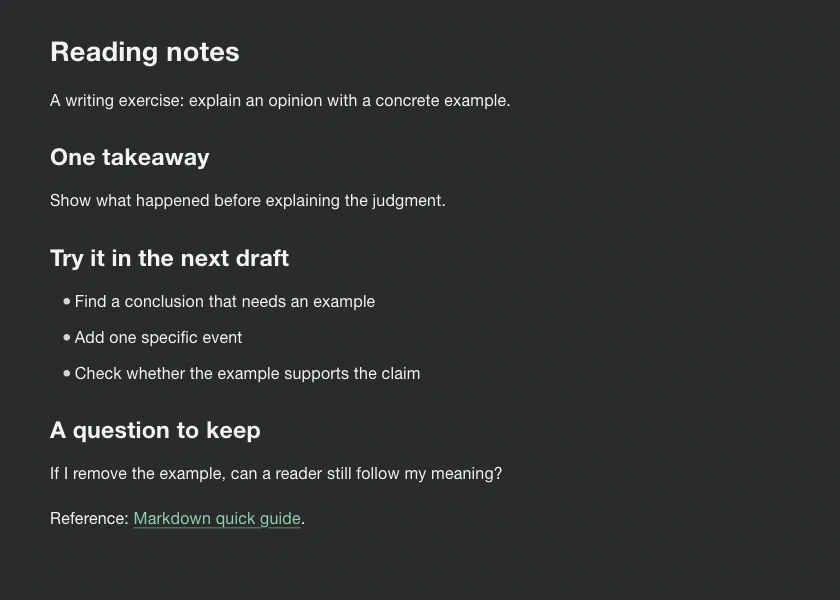
The example has a takeaway, actions to try, and one unresolved question. Its theme—explaining an opinion with a concrete example—is sample content for the exercise. Download it and open it in Textend to edit the visible text directly, without entering source mode.
You can also start with a blank document. Write your own takeaway, actions, and question, then give them structure using the steps below. Decide which ideas are peers and which deserve a section; Textend handles their presentation and editing.
The screenshot shows the sample in Textend’s actual writing view; click to enlarge it. The note has no image attachments, so the single .md file contains all its content.
Set the title and section headings
Type “Reading notes,” place the caret on that line, and choose Paragraph → Heading 1. Set “One takeaway,” “Try it in the next draft,” and “A question to keep” to Paragraph → Heading 2. The formatting toolbar also provides heading choices. You do not need to type hashes yourself.
In this note, the document title is above three peer sections. A subsection within one of them could use Heading 3. Choosing a level organizes content. To make the text look larger, adjust the appearance instead of turning every line into Heading 1.
For frequent use, Command+1 and Command+2 on macOS, or Ctrl+1 and Ctrl+2 on Windows, set the first two heading levels. To return a line to ordinary prose, choose Paragraph in the Paragraph menu, or use Command/Ctrl+0. Learn the visible result through the menu before deciding which shortcuts to remember.
| Content in the note | Choose | Relationship |
|---|---|---|
| Reading notes | Heading 1 | The document title |
| Takeaway / Actions / Question | Heading 2 | Three peer sections |
| Explanations within a section | Paragraph | Develop the section |
Write paragraphs and list the actions
Write your takeaway directly below its heading. Read and edit the paragraphs in writing view without arranging source blank lines first. A sentence that wraps because the window became narrower still belongs to the same paragraph.
In the actions section, type three separate lines: find a conclusion that needs an example, add a specific event, and check whether it supports the claim. Select those lines and choose Paragraph → Bullet list to make parallel items. You do not need to add a dash to each line yourself.
Enter at the end of a nonempty item continues with another item. Enter in an empty top-level item without children returns to ordinary prose. Learn paragraphs within items and nested levels when you need them. For the first note, clear parallel actions are enough.
Add a link back to the reference
Write “Markdown quick guide” at the end of the note, select those words, and use Add link in the formatting toolbar. Enter the reference address and confirm. The label identifies the reference; the address determines its destination. Set both through the interface.
The sample links to https://commonmark.org/help/. You do not need to assemble square brackets and parentheses yourself. After adding it, use Open link from the link’s context menu to check the destination. A label such as “Official documentation” cannot establish that the address is correct.
If you have hidden the formatting toolbar, make it always visible under View → Formatting Toolbar. You now have a takeaway, actions, and reference in one note you can continue editing.
Make the note yours and save it
Replace the takeaway with something from your recent reading, change the actions to things you actually want to try, and add your own question. Keep writing within the existing sections and list, without rebuilding the formatting or opening the source.
Two common starting problems can also be handled in writing view. If a line remains a heading, inspect its level and choose Paragraph. If an explanation unexpectedly becomes a new bullet, decide whether it is a peer point or more detail for the previous item. Establish the structure before adjusting type or spacing.
Use File → Save for the current document. To send an editable Markdown copy, choose Markdown under File → Export. Saving the draft and creating a deliverable serve different purposes. Reopen the exported file in Textend to inspect it.
Explore the Markdown when you want to understand the file
You can already finish and save a note. This section is optional: what does the .md file contain, and why can another editor use it? If you want to keep writing, skip to the next section.
Markdown records structure in plain text with a few marks: headings have levels, paragraphs have separators, lists have items, and links have labels and destinations. Textend’s visual editing writes those changes into the same Markdown text. Writing view is for direct work on content; source view lets you inspect the characters when useful.
If curious, use View → Source Code Mode. You will see hashes, dashes, and link syntax, without needing to edit them to continue writing. The view is useful for inspecting a link precisely, investigating a difference in another tool, or discussing the file with someone familiar with Markdown.
Optional: view the Markdown source of this note
# Reading notes

A writing exercise: explain an opinion with a concrete example.

## One takeaway

Show what happened before explaining the judgment.

## Try it in the next draft

- Find a conclusion that needs an example
- Add one specific event
- Check whether the example supports the claim

## A question to keep

If I remove the example, can a reader still follow my meaning?

Reference: [Markdown quick guide](https://commonmark.org/help/).
Keep the editable note and deliver what the reader needs
Send .md to someone with a Markdown editor so they can keep editing directly. Use PDF for a laid-out document to read, or HTML for browser reading. If the recipient must edit in Word, Textend’s DOCX export requires Pro or an active trial. Basic Markdown editing, saving, and basic exports remain free.
Before delivery, open the result in the receiving tool and inspect headings, lists, and links. Type and spacing can change across tools; consistent structure does not imply pixel-identical appearance. This sample has no images and can travel alone. Local images added later need their files and relative locations preserved too.
Start with the content again next time. Set a heading when you need a section and use a list for parallel points. Markdown keeps the document structured and portable, while Textend lets you spend most of your time with the words you want to write.