 Textend
Local-first: where does your draft actually live?
Find the actual Markdown file, then distinguish Textend’s library, external files, saving, history, recovery, and backups. Know where your current draft lives and where to look when you need an earlier copy.
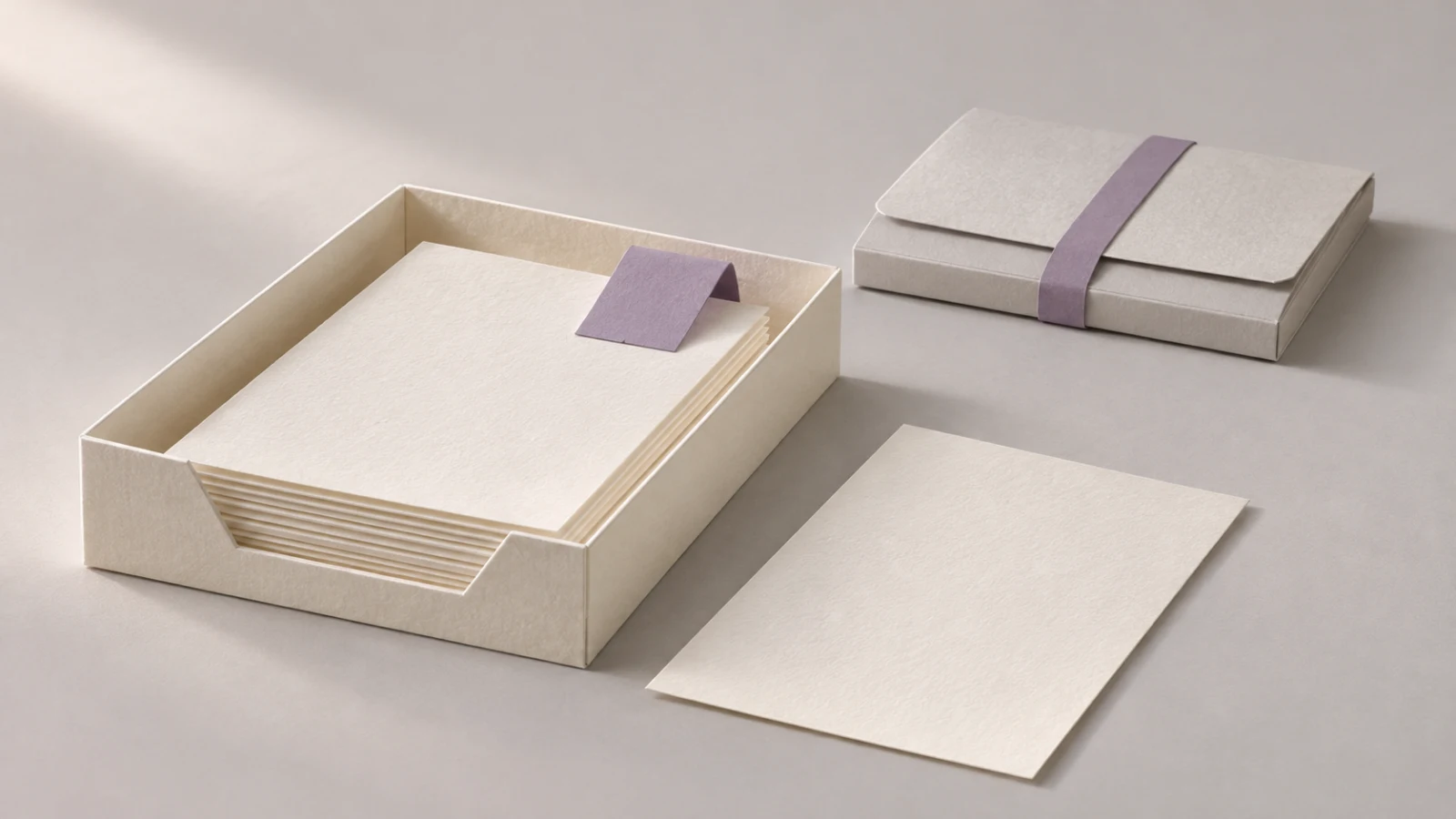
Start by finding your actual draft
After writing an article, you may wonder whether it is a file on your computer or data only the editor knows how to open. Can you keep working when you change computers, send it to someone else, or stop using the product? Start by finding the current draft.
Textend works with Markdown documents on your computer. Organize articles in its library or open an existing external file directly. Both let you edit in the writing view without reading source code to establish which file is yours.
A file being local answers the location question. Successful saving, older versions, and independent backups need separate checks. We will use a short interview editing plan to make those distinctions concrete.
First distinguish library documents from external files
An article created in the library is a Markdown file inside the library folder. Folders organize the hierarchy and document names correspond to filenames. Attachments, history, recovery data, and app state also have their own places. The library can have its own location; you do not need to memorize a default path.
Opening an external Markdown file continues work at its existing location. For example, saving interview.md in a project folder targets that external file. Opening does not automatically move it into the library. Import to library creates another copy, which you then manage separately from the original.
Before organizing files, identify whether you are editing a library document or an external one. If both contain an article with the same name, decide which is the working draft. Otherwise you may back up an older copy while assuming it contains the latest changes.
Use the app to locate the file
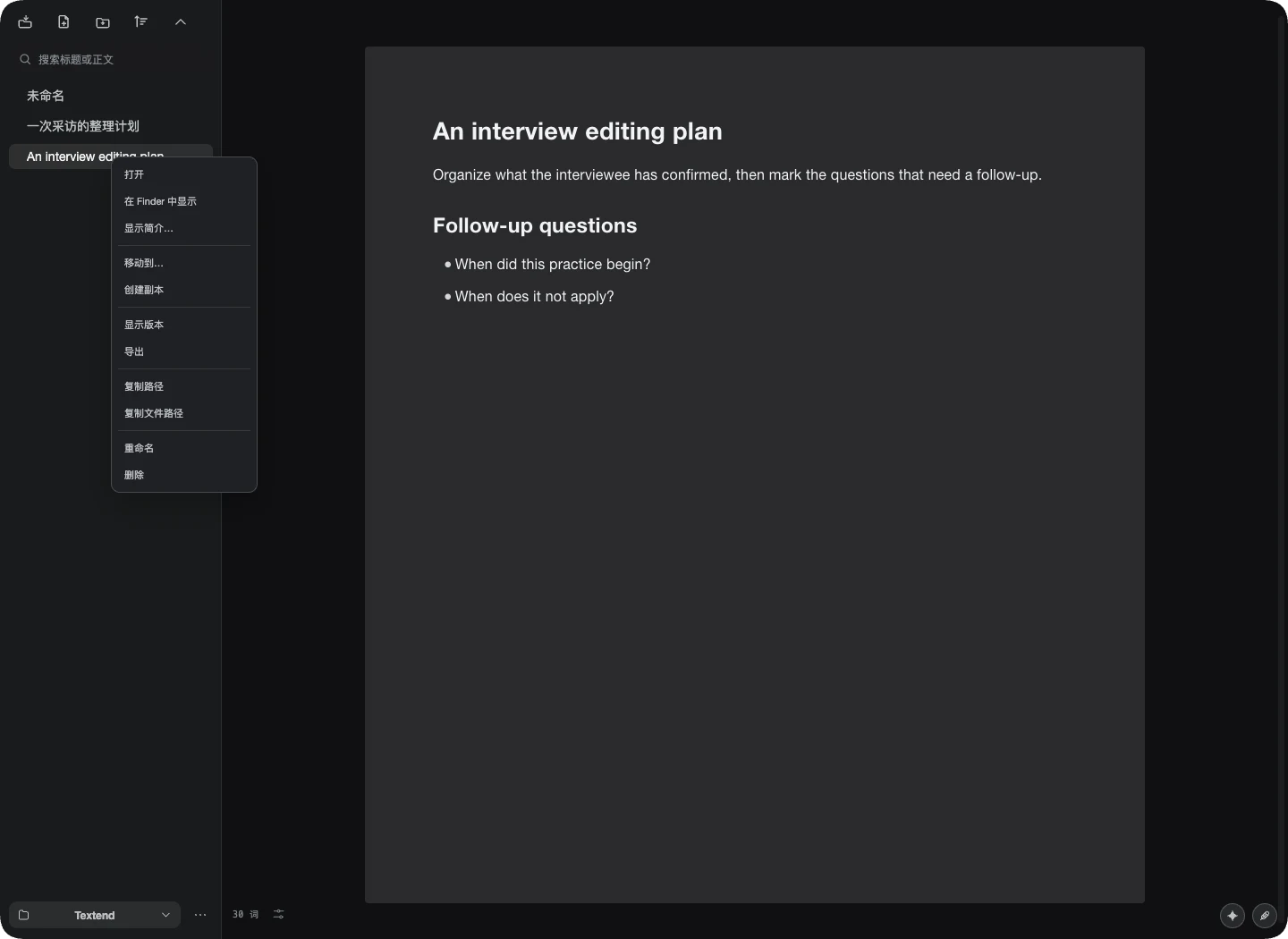
For a library document on macOS, right-click it in the library list and choose Show in Finder to reveal the actual Markdown file. To inspect the library location, open Settings → Storage & Diagnostics and look at the library’s location and open-folder control. The screenshot below shows the real context menu for a sandbox sample.
For an external draft, check the folder from which you opened it. Before saving, confirm the name and directory, especially after importing into the library or saving a separate copy. Creating a copy does not decide which one you will edit next.
Locating the file is a check, not a reason to move your only original while editing it. Save and make a copy before reorganizing. Illustrated drafts also need their referenced picture folders; copying only the .md can leave pictures behind.
Seeing an edit and saving it are separate steps
Suppose you add “The interview outline is complete. Next, arrange a time to check it.” It appears in the editor before a successful save makes it part of the current file on disk. Textend’s library automatically saves the working draft and also supports explicit save. Watch for a save-failure notice after important changes.
External files currently require File → Save, or Command+S on macOS and Ctrl+S on Windows. Pausing or switching windows does not establish that the external file has been written. The app may keep recovery information, but that is separate from saving the file.
For this sample, we read back the actual files: after library autosave completed, the file contained the added paragraph. The external copy retained the original text until explicit save, then contained the change. Try it on an unimportant practice copy and reopen it to check.
If saving fails, keep the window available and follow the retry or save-copy options. Confirm that the content is in a file you can open before moving files or closing the app. Text remaining visible in a window is not a save receipt.
Choose the right way to go back
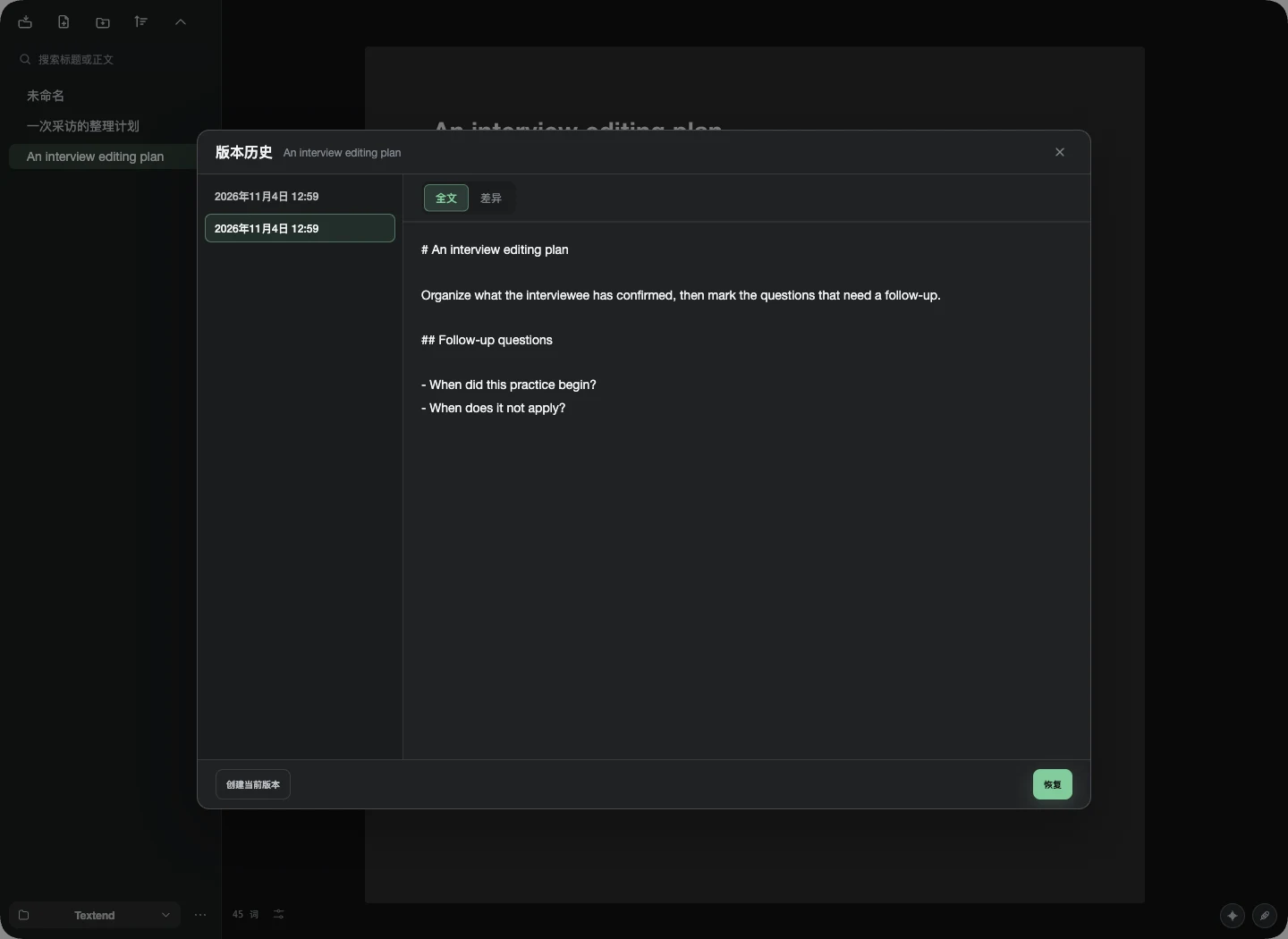
For a sentence you have just changed by mistake, consider undo first. For earlier content, inspect library version history and preview before deciding to restore. The screenshot shows history for a library document; it does not imply that every external file has the same history.
After an unexpected exit, inspect the content offered by the recovery flow. Recovery relies on a successfully saved draft or recovery checkpoint; it cannot guarantee the last characters still in memory. Discarding changes and keeping a recovery draft also have different outcomes, so read the closing choices carefully.
For a deleted library article, check the trash. Permanent deletion and emptying the trash remove further chances to retrieve content; do not use them as a recovery experiment. Use the table below to pick an appropriate starting point.
| What you need | Where to start |
|---|---|
| A recent unwanted edit | Undo in the current editor |
| An earlier version | Library version history; preview first |
| Work interrupted by an unexpected exit | Offered recovery flow and available checkpoints |
| A deleted library document | Items not permanently removed from the trash |
| The computer or original storage is unavailable | A backup already kept in a separate location |
Plan a backup separately from the working folder
A copy kept elsewhere can help when the original is overwritten or its device fails. A second article in the same folder may be useful for comparison but can be affected alongside the working draft. Use a separate device or another suitable destination within your backup plan, and confirm that you can access it.
Decide the scope first. For editable text and pictures, check the Markdown and referenced attachments. If you need history, recovery data, and discussion state too, a single exported .md is insufficient. The library’s .textend directory stores such additional state and belongs in a full-library copy. Machine-level service settings and keys are stored separately; do not assume the library contains everything.
Save current changes and stop editing the library before copying the required scope through your backup tool. A partial copy made while files are changing is not enough to establish a complete snapshot. If the tool filters hidden directories, check that it has not omitted state you intend to keep.
Open a copy from the backup location and check headings, key paragraphs, and local pictures. Judge a text-only backup as a text copy. For a full library, inspect documents, attachments, and the state you need to retain. Finding a backup file and establishing that it is useful are separate checks.
Understand trial limits and AI requests separately
Choosing not to buy or reaching the end of a trial does not delete local documents. Basic editing, saving, recovery, and handling existing AI suggestions remain available. New AI writing tasks and professional exports require the relevant entitlement. File location and feature availability are separate questions.
Local-first does not mean the app never connects to the network. AI requests go to the service you configure and may include instructions, selected text, relevant passages, document context, or discussion content, depending on the task. Selecting two sentences does not establish that the request contains only those sentences.
Image uploads, remote-image display, licensing, and updates have their own network paths. For material unsuitable for sharing, decide whether a service is needed and which content would go to whom before using it. Consult the privacy notice and the chosen service’s terms for the full data-handling details.
Walk through saving and backing up one practice draft
The sample interview plan contains no real interview material. Download it and open it as an external file in Textend. Add a progress sentence, explicitly save, then reopen it from the original location. To try the library, create a separate library copy and reveal its actual file. Keep the two copies identifiable.
Copy the saved practice file to a separate test directory and open that copy to check the added sentence. There is no need to delete the original, empty the trash, or force the app to quit. Establish where the current draft lives, what was saved, and whether the other copy opens.
Use the downloadable checklist to record your own locations and backup scope; it does not upload those notes. Before a longer or more important project, you then have a repeatable habit for writing directly while knowing where to start when moving or retrieving the work.